Optimize Game Settings And Graphics For Better Performance
A guide to optimize your game settings and graphics cards in PC gaming to achieve better performance. Explore useful tricks for iOS 18 and iPhone game settings.
Introduction
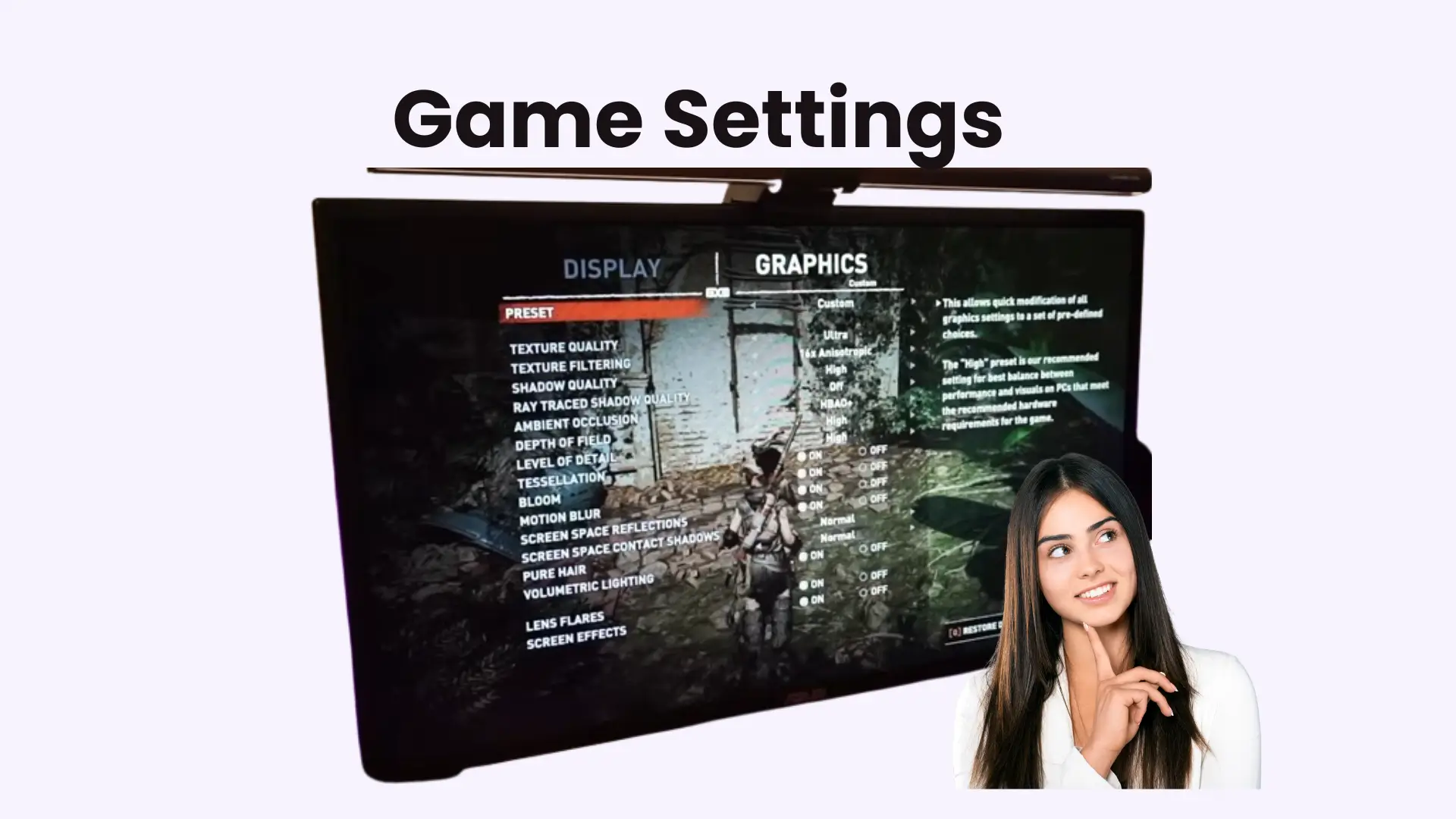
Each gamer wants a seamless gaming experience without lag and massive graphics, but not every computer or laptop is powerful enough. For this purpose, adjusting game settings is a crucial step in every game, as it is directly related to your gaming performance, especially in terms of FPS.
Many options are available in the in-game settings, such as texture and resolution. Properly adjusting settings can help you make your game run faster and smoother without compromising your graphics.
Every option has its work and function; enabling all the options is not the best practice. Maintaining balance in setting features is key to gaming optimizations.
In this article, I will describe which settings mostly affect your games and how you can get better performance from your graphics through the suitable adjustment of settings features.
This guide is helpful for both casual and professional gaming settings. It does not matter whether your system is high-end or low-end; you can enjoy an extreme gaming experience with the right settings.
My Experience
While testing different PC builds, it became clear that small changes in game settings can have a noticeable impact on FPS. Adjusting resolution, shadow quality, and effects showed different results depending on whether the CPU or GPU was under more load. These observations helped explain why some systems struggle even with powerful hardware.
Game Settings Mode On IOS 18
This mobile example is shared only to explain how background processes affect performance, which follows the same logic used in PC gaming bottleneck analysis.
While playing games on an iPhone or iPad, iOS 18 Mode can be useful for you. The new and latest game Mode Apple launched in iOS 18 to upgrade the game’s responsiveness.
In this feature, the tab is automatically on when you start the games. You don’t need to do something manually. It slows down the background app to give more power to games. It improves the performance.
If you are playing a game through the controller, then it speeds up the game. Quick response by pressing the button.
Although iOS game mode is designed for mobile devices, the core idea is similar to PC gaming. When background processes are reduced, more system power is available for the game.
On PCs, this same issue appears when the CPU or GPU is overloaded. Understanding this behavior helps PC gamers recognize performance limits and apply better settings to reduce bottlenecks.
How To Enable Game Mode
When you are playing a game, swipe on the right side of your screen, open the control center, find the name of the game, tap on it, and enable the game mode.
Game Settings Mode On Android
Like iOS, Android has a game mode too, to improve the game performance while playing games. In Android 12 or the latest version, game mode can be enabled from the dashboard and settings. When you are in the game mode, turn off the background app. More resources are spent on games.
This mode also increased the gaming experience. If you are using a gaming tool such as a game launcher, then enable the game booster settings. It improves the system’s weaknesses.
This feature shuts down the extra app and improves your performance. Discover each game’s settings on Android, such as resolution and battery saving options.
Android game mode follows the same performance logic used in PC gaming. When background tasks use system resources, frame rate drops. On a PC, this usually points to a CPU or GPU bottleneck. This comparison shows why managing system load is important for stable FPS during gameplay.
PC Optimization For Better Performance in Games
You can get the benefits while optimizing your PC, including better performance in games without lag.
Why FPS Is Important In Game Settings
FPS means frames per second; it increases the smoothness of games.
Note: Higher FPS gives seamless graphic performance and also reduces the chance of lag.
Which PC Components Impact Gaming Performance
In many test cases, systems with an unbalanced CPU and GPU combination produced inconsistent frame rates. PCs with well-matched components maintained smoother gameplay, even without using the highest graphics settings. This shows that hardware balance matters more than simply upgrading one powerful part.
Guide to Optimize Your PC (Enable Game Mode Windows 10)
Follow these steps:
Instructions For Nvidia Users
Instructions For AMD Users’
Management of Monitor Settings
- The refresh rate should be maximum.
- Check the options of FreeSyn and G-Syn.
- Enable the game mode options.
Close Windows Game Bar
Game bar settings in Windows usually run in the background and use resources, and FPS5-10% can be improved by shutting them down. It also helps to reduce the pressure on RAM.
Optimize the Power Plan
Close SuperFetch (SysMain) And Prefetch in Games
Superfetch pre-loads the RAM and has a negative impact on gaming performance. Temporary disabling for games can be beneficial for you.
Shut Down Background Apps
Disable Mouse Acceleration
Mouse acceleration is a window feature that controls the cursor movement and describes how quickly the mouse moves. In the game, this disturbs the gaming performance and speed, so it should be disabled for better performance.
Note: Performance improvement is necessary, but some gamers use God mode cheats to enjoy the game. They can test the graphics freely.
Settings Adjustment Under The Game
Let’s dive with me into the in-game settings menu to learn how to fine-tune resolution and shadow for great performance.
Resolution
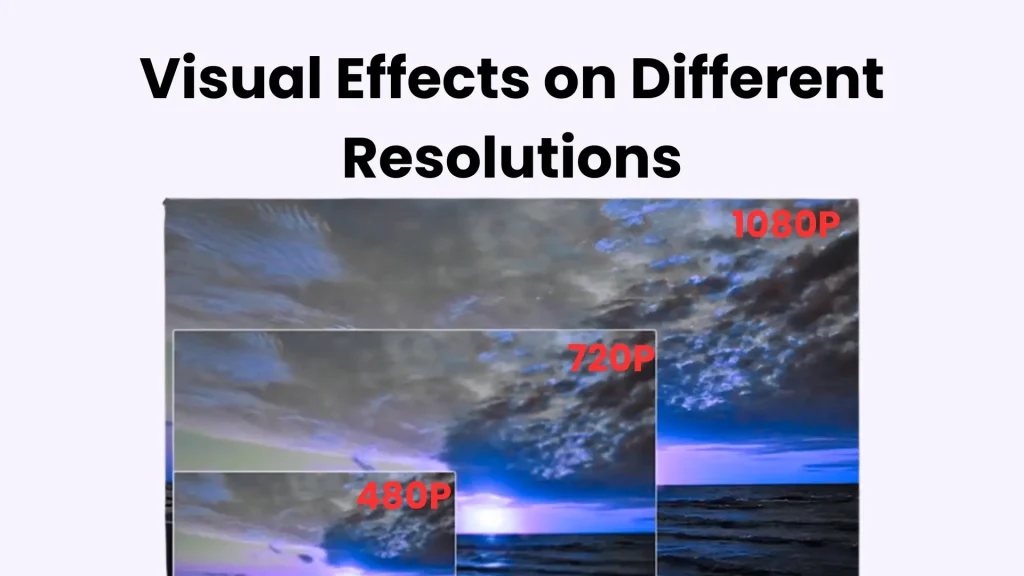
For example, a General game setting example is to keep the resolution 1080p, the textures should be medium, and shut down the motion blur for better performance.
Upscaling AMD FSR
AMD FSR is a unique and modern upscaling technology that makes high-quality images with low resolution. This feature is best for those who use an AMD GPU and want to improve the FPS without disturbing their graphics quality. Because AMD GPUs deliver the highest performance in new and futuristic gaming.
Post-Processing Effect in Games
Some visuals, such as blur, depth of field, and bloom, just enhance the visuals but slow down the performance. Disabling all these features can give a clear FPS and visuals. Among the variety of graphic options, anti-aliasing and shadow have a great effect on gaming performance.
Ambient Occlusion
Ambient occlusion is a graphics setting that adds real shadow and lighting to your game scene. When two things are mixed, light and darkness appear there, and games look more natural because of it.
Ambient occlusion settings off or low can be beneficial for mid-level or low-level PC. It improves the FPS, and games run smoothly without disturbance from graphics cards.
Reflections (SSR / Ray Tracing)
SSR and ray tracing are used for realistic graphics, but they put a load on the GPU. If your system is not high-end, then disable this option.
Anti-Aliasing
This makes the jagged edge smoother and faster.
XeSS
Intel launched Xess, a modern upscaling technology for faster gameplay while maintaining graphic quality. It runs the game on low resolution and smartly transfers to high resolution. Games run fast and also maintain the graphic quality. It also works on AMD and NVIDIA GPUs. It has useful and flexible features.
Advanced Radeon Settings For Games
Surface Format For Texture Optimization
The AMD driver automatically optimizes the texture, which helps to reduce the burden on the GPU and also improves your gaming performance. This option should be on for the automated optimization of texture to improve the FPS.
Shader Cache to Reduce the Loading Time
It caches the GPU shader, reduces the loading time, and loads it on the GPU. This option should be on to reduce the shader and improve the load time.
Tessellation
AMD controls the Tessellation. A high tessellation setting degrades the FPS. For mid-level PC, Tessellation setting should be X2 to X3, and high ended pc X16 to X32
Morphological Filtering For Clear Visual
MF is a graphics setting that is used with MSAA and FSAA to make smooth edges. If you want a clear visual without reducing FPS, use the MF, but check its blurriness.
Frame Rate Control
While playing games on full screen, by setting FPS limits, your GPU heat, power, and the noise of the fan can be reduced. If your monitor supports FreeSync, use it; it reduces the load on the GPU.
Advanced Optimization For Graphic Plan
Open the window settings for smoother and faster gameplay.
Distance And Level Of Detail In Game Settings
The maximum draw distance in the game world can drop the FPS. Its medium or low level can improve the performance. LOD means a clear picture from a distance, while the high load puts the LOD on the GPU.
Storage Settings And Optimization
Network Settings
Network stability does not create a hardware bottleneck, but poor connectivity can feel like one. Lag or stutter caused by network delay can be mistaken for low FPS, making it harder to judge whether the CPU or GPU is the real issue.
Thermal Management
Heat can become a hidden performance limit in PC gaming. When components get too hot, they reduce speed to protect themselves, which leads to sudden FPS drops. Proper cooling helps the CPU and GPU maintain stable performance without throttling.
Performance results are not the same on every system. Factors like cooling, background processes, and game engines can change how settings behave. For best results, adjustments should be tested step by step while keeping an eye on temperatures and frame consistency.
How to Reduce The Glitches In Gameplay
Frame glitches happen when CPU and GPU workflows interfere with each other. If the CPU and GPU are busy loading the background texture, a shadow batch frame rendering delay occurs.
This troubleshooting method is also useful for PC gaming. Performance issues often come from high CPU load, GPU saturation, or memory pressure. Identifying the exact cause allows players to adjust specific settings instead of lowering everything at once.
Troubleshooting. Divide the heavy task and free your rendering frame so the game runs smoothly without lagging.
Causes of Game Lagging
According to Apple’s suggestion, to discover the root causes of game lagging, use the five-simantic why until the reason is in front of you.
For example.
What Is Lyra’s Game Setting?
Lyra’s game settings system shows how organized settings control both visuals and performance. The same idea applies to PC games, where graphics options directly affect CPU and GPU workload. Understanding this structure helps players identify which settings increase load and cause performance limits.
Lyra is a simple game in Unreal Engine, and a game setting plugin is also available in it. This plugin manages the UX UL and game settings. Volume resolution can be managed here. Lyra’s game settings screen permits the player to control every aspect, from audio to resolution, visually.
For PC gamers, the main lesson is control. When settings are clearly organized, it becomes easier to balance performance and visuals. Adjusting options like resolution, shadows, and effects follows this same approach and helps reduce hardware bottlenecks.
Note: Advanced Unreal Engine settings are for developers; casual gamers may skip this section.
Custom ( Desired) Settings
If you want more than an in-built setting, you can make the custom setting yourself. But it should be remembered that there is also an instance where you want the complex logic in your game setting. This can change the language setting.
Edit Conditions in Game Settings
User Interface For Display Settings
Data Source of Games
For setting the value, some macros are used, such as:
Lyra games help you to easily manage the settings of games, whether it is volume, language, or resolution. All these settings can be done by UL and also by code.
Optimization Tips For Specific Games
Each game has different settings, so its optimization can be varied. In some games, such as city building, population density directly affects the FPS.
You should use a benchmark or a third-party tool to check performance, monitor different settings for various games, and apply popular game optimization tips. The developer guide should also be followed.
The famous game Fortnite permits more customization through game user settings. Proper setting adjustments in Fortnite can improve FPS and reduce the bottleneck.
FAQ’s
Conclusion
Optimization of game settings for PC is not a one-time work; you have to watch its optimization from time to time. It means that you have to look after your RAM, GPU, and cooling system. In this article, I described all possible optimizations for game settings.
By observing hardware behavior and adjusting game settings accordingly, players can avoid common CPU and GPU bottlenecks. Using performance analysis tools along with proper settings adjustment helps maintain stable FPS across different PC setups.
Remember that you should keep your system clean and updated, including modern drive installations, close extra apps, and maintain the cooling system so that your performance remains smooth.
This guide is based on real testing and observation rather than preset recommendations. Every PC responds differently, so checking performance after each change is the most reliable way to improve stability and overall gameplay experience. I hope it will help you in your daily routine.