CPU Overclocking Guide: Improve Your Gaming Performance Now
CPU overclocking boosts your gaming performance without upgrading to expensive hardware. Learn our CPU & GPU overclocking guide to gain more FPS.
Introduction

Gamers, professionals, and almost everyone want to speed up their systems. They install the new components, such as RAM, graphics cards, and update the software. However, requirements change over time.
However, many people don’t know the most important technique to speed up their PC, which is called overclocking. You can perform CPU overclocking or increase the GPU’s performance to achieve better output from your gaming PC.
CPU and GPU Overclocking make your system faster without buying expensive hardware. From my own hands-on testing with mid-range Ryzen and Intel CPUs, I’ve seen stable overclocks deliver clear FPS gains in CPU-bound games.
In this article, I will describe in detail CPU and GPU overclocking based on my personal experience.
Let’s move with me to discover GPU and CPU overclocking to boost your game performance without spending a lot of money.

What Is CPU Overclocking?

Overclocking means speeding up the CPU and GPU more than the default speed, which is set by the company. When you increase the speed, you get better performance while playing heavy games. This also helps to run games faster and more smoothly.

CPU overclocking can improve your gaming performance. For example, you are playing Warzone and the Ryzen 93900x CPU is overclocked to 4.4 GHz, then it makes the difference of 30 FPS. These games use approximately 1-2 cores.
Overclocking the CPU is beneficial for games that use 1-2 cores, such as strategy games, MMOs, and AI games. But you should carefully use this technique because the wrong settings of overclocking can heat up your computer and crash your system.
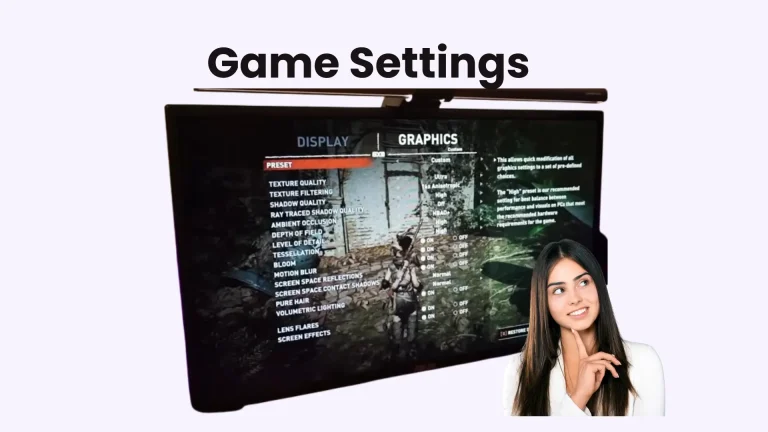
While overclocking, it is essential to maintain a proper cooling system and settings. Before overclocking, check for system bottlenecks with our game settings optimization guide.
For example, while testing a Ryzen 5 5600X paired with an RTX 3060, a mild CPU overclock helped reduce frame drops in Warzone and improved average FPS without pushing temperatures beyond safe limits.
History Of CPU Overclocking
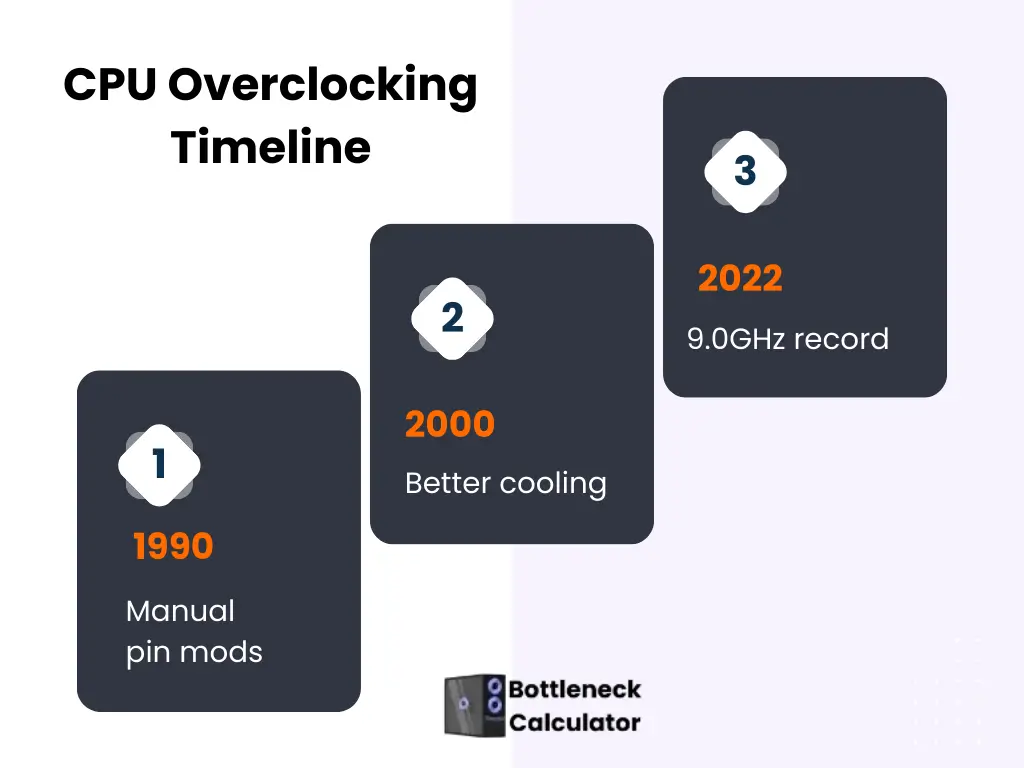
Overclocking became famous in 1990 when speed could be increased with little effort and minimal pin and voltage changes. In 2000, better cooling systems were launched, allowing people to run CPUs safely without any damage.
Nowadays, overclocking has become a hobby for tech lovers, who try to maximize their CPU’s speed. In 2022, someone ran an Intel Core i9-13900K at 9.0GHz, setting a world record.
What Is a Clock Speed in Overclocking?
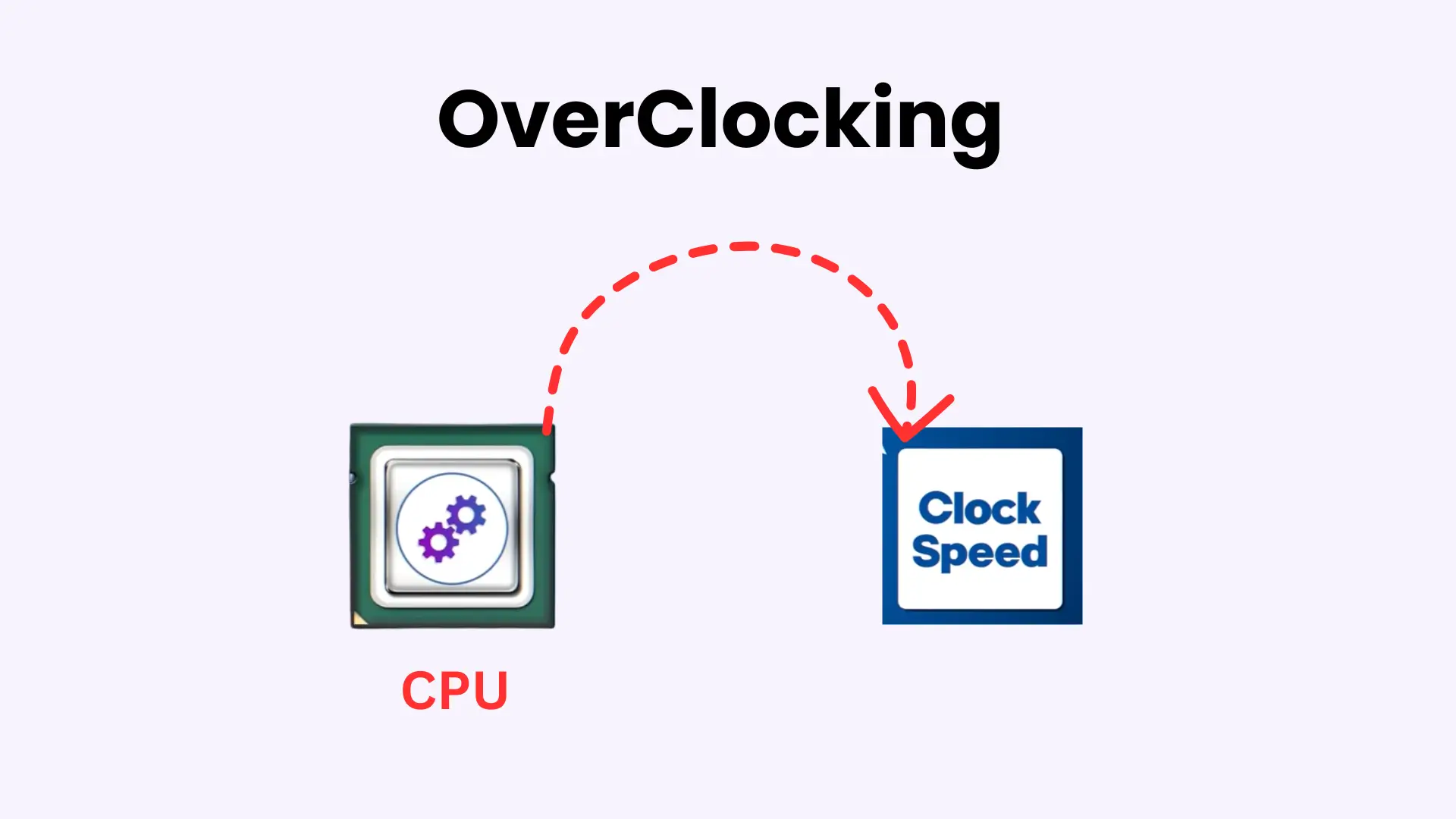
Clock speed means how many cycles your processor can work in one second, and it is measured in Hz. If a processor’s speed is 3.5 GHz, it means that this processor can complete 3.5 billion cycles per second.
When you increase the clock speed, such as overclocking, your CPU and GPU work harder. It’s not only improving your gaming performance but also making your games run faster and smoother.
How To Do CPU Overclocking
For doing the successful CPU overclocking, follow these steps:
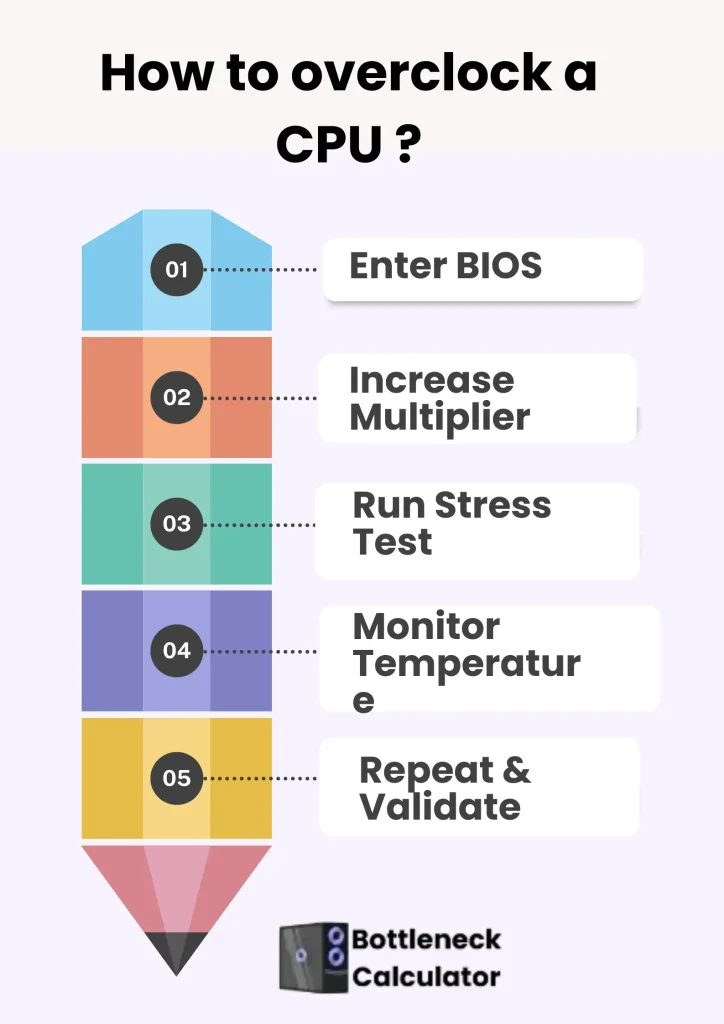
I usually stress-test systems using Prime95 (Small FFTs) and AIDA64 for at least an hour to make sure everything stays stable.
Note: Overclocking results can vary depending on hardware quality, cooling, and power limits, so users should always proceed carefully and follow manufacturer guidelines.
How To Overclock a CPU On a Laptop
If you want to do the CPU overclocking on a laptop, then keep in mind that most processors in notebooks are locked, which is why overclocking is not possible.
However, some gaming laptops have this option, which can be enabled through BIOS settings software, such as Intel XTU. Always make sure you have a proper cooling system in your PC.
Processor Overclocking Tool ( Intel XTU )
Intel XTU is one of the best processor overclocking software programs that performs well with a new motherboard. This provides all options in one place. You can do the overclocking within the window.
The Way to Check The CPU-Z Overclocked
Open the program, check the clocks section, core speed, and its frequency. Multiply the bus speed by its biggest multiplier. Compare the result with the previous reference value. If your result is more than the reference value, it means that the CPU is overclocked.
What Is GPU Overclocking?
GPU overclocking doesn’t have a greater effect on performance; a 5-10 % improvement in your gaming performance can be noticed, but it helps to cross the FPS limits in games. It helps to run the game fast and smoothly.
The word “OC” stands for overclocking. OC added that the GPU comes factory-overclocked and is already manufactured to deliver great performance. Simply, overclocking graphics cards means upgrading the clock speed to get the highest performance in games.
Laptop GPUs can also be overclocked, but they have less cooling. Keep in mind temperature, battery, and performance while using a gaming laptop.
Discrete Vs Integrated GPUs
Every CPU has an integrated GPU. A Discrete GPU or dedicated graphics is a separate chip that is attached to the circuit board. Integrated GPUs are used more because they make the system lightweight and also use less power. Discrete GPU is best who want higher performance, but it takes the more power and generates heat.
GPU Vs Graphic Cards
GPU and graphics cards are not the same; people treat them as the same thing. A graphics card is an in-built hardware part of a GPU. It is connected to the motherboard and generates the image for the monitor.
How To Do GPU Overclocking
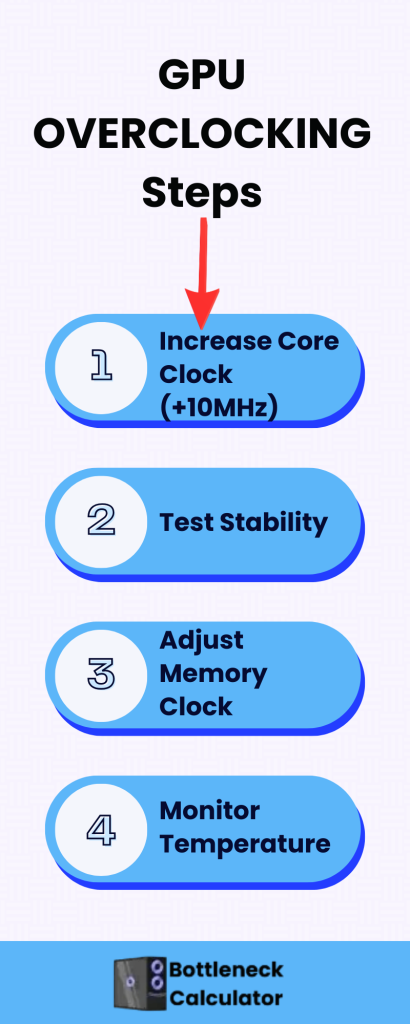
For GPU overclocking, use the MSI Afterburner. You can upgrade the core clock in 10MHz steps. Repeat the test after every step, then do the next steps until the GPU achieves the maximum limits. However, performance can vary from game to game.
Overclocking depends on two things: the GPU clock and the memory clock. Upgrading both can improve the frame rate, but increase it gradually for PC stability. GPU boost clock helps to get better performance in game loading time.
The Way To Check GPU Overclocking(Using GPU-Z)
The reference model’s speed is mentioned in the default clock row. GPU clock speed shows how quickly the GPU processes the data, and its speed is measured in MHz.
The Actual speed of the GPU is described in the GPU Clock. If the GPU number is more than the Default clock, then it means that your GPU or PC is overclocked.
Smart Game Booster Overclocking
It works like CPU and GPU overclocking software and a tool. This is an easy method for users who don’t understand BIOS. Smart game booster reduces the PC’s RAM, shuts down all the background apps, and also offers the super boost mode.
Does GPU Overclocking Really Work In Gaming PC?
Yes, when you overclock the GPU, it improves the performance of the media app. Suppose your system is already more powerful than you may not feel any improvement. But casual games that run 40 or 50 FPS can benefit from overclocking and improve performance.
So, it is clear that GPU overclocking has its own worth in enhancing gaming performance. GPU is not only a part that can be upgraded, but PC’s storage space, downloading apps and games are also important in performance.
Does GPU Overclocking Improve FPS?
GPU overclocking increased FPS. It delivers smooth graphics during gameplay. Overclocking enables the GPU to operate at a higher power level, resulting in increased FPS at higher resolutions.
GPU overclocking slightly increased the FPS, but it is free performance; you don’t need to spend a lot of money. You have to adjust the settings.
The latest GPUs are very expensive these days, and not every upgrade gives excellent performance. With a 1-2 generation outdated GPU, overclocking can slow down your system. In this condition, it is better to save your money instead of gaining a noticeable performance.
Is It Safe To Overclock Your GPU While Playing Games?
Yes, GPU overclocking is safe. Overclocking increases the temperature. If your system is not capable of handling it, then it becomes the cause of the crash.
In the above condition, reduce the overclocking and then do the testing. Perform the overclocking gradually, and after each step, perform the test.
If your processor overheats, it reduces its speed. This is called thermal throttling. This is the best way to know when your GPU overclocking is happening.
A heated CPU can permanently damage your PC. GPU overclocking is not a bad thing, but proper settings and management lead to your highest performance.
Warning: Changing the default settings voids the warranty; the manufacturer will no longer honor their guarantee. You are using the new performance limit without any protection, and this is out of warranty.
What are the factors I Should Consider Before Overclocking?
Check Your PC Hardware’s Compatibility
Not every CPU and GPU is manufactured for overclocking. Before overclocking, ensure that your PC’s processor can support it. Hardware compatibility should be your priority before overclocking.
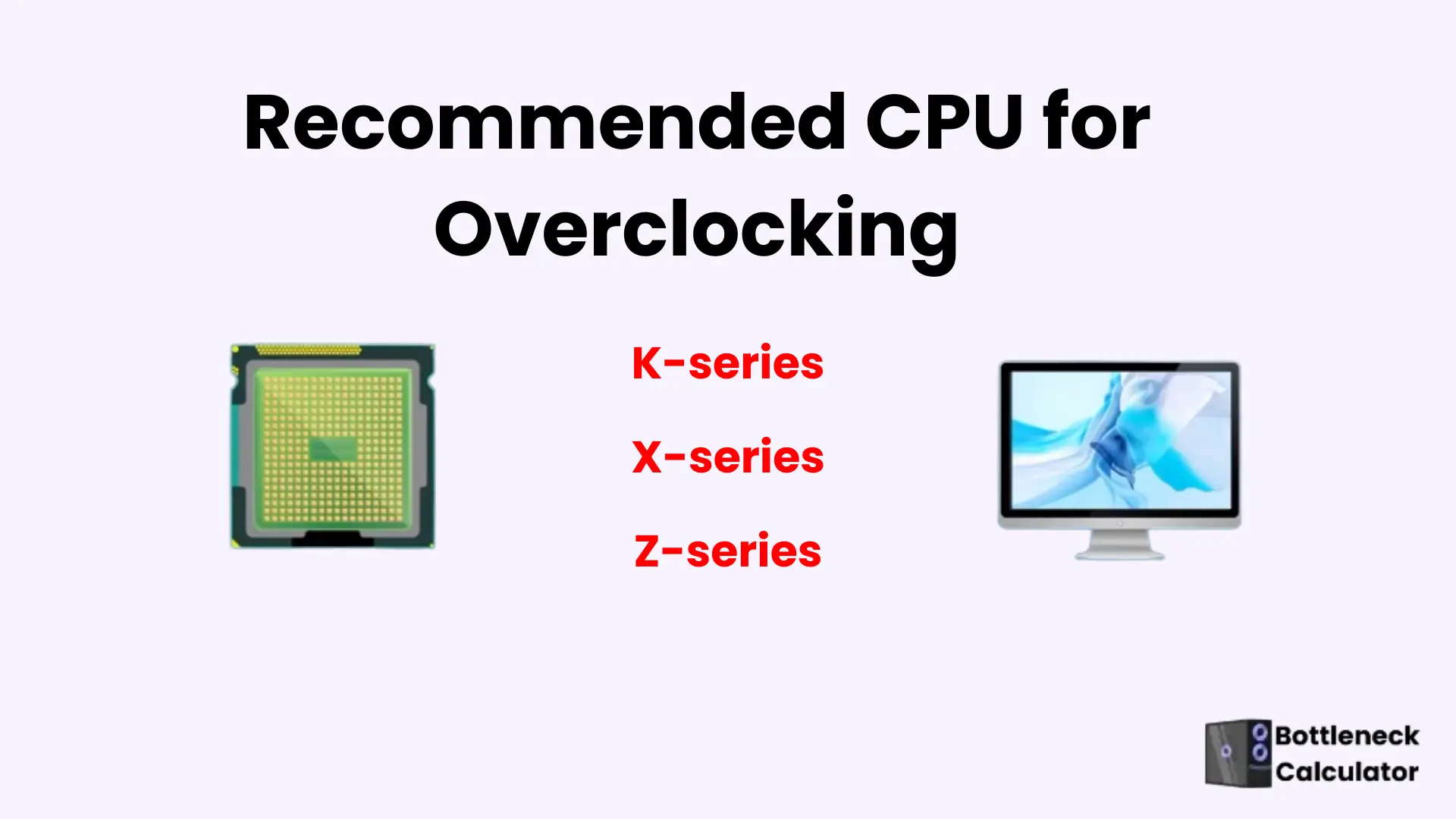
An unlocked CPU, such as K and X-series, works with Intel’s XTU. If you want to overclock CPU and memory, then your motherboard chipset should be Z-series, such as Z890, Z790, Z690, or Z590. The other cheapest models allow you to overclock the memory.

Update or Install New GPU Drivers
The latest motherboard BIOS and graphics cards are the requirements for overclocking. The updated driver also enables some extra features so that you can enjoy them. Use the new version of the BIOS for stable gaming performance.
Backup Your System
While overclocking, if you make a mistake, then you must have had a restore point to recover your PC. By pressing this restore point, your PC is restored to its previous condition without any loss. Always perform the benchmark test to analyze the before-and-after results.
Precautions While Overclocking
Some precautions are described below:
Best Cooling Solutions For Overclocking
Common Problems And their Troubleshooting
More Troubleshooting Tips
Note: After overclocking, your PC doesn’t start, then press the Clear CMOS, remove the battery for 10 seconds, set it again, and reset all settings. The system turns to the default settings during the process.
How to Fix an Overclocked CPU
If your CPU has been overclocked and is causing instability, you can restore it to normal operation by resetting its settings to default. There are two main methods:
Method 1: Reset Through BIOS/UEFI (If Your PC Boots)
Method 2: CMOS Reset (If PC Won’t Boot)
After Resetting:
When should I upgrade instead of Overclocking?
FAQ’s
Conclusion
GPU and CPU overclocking are the best way to increase the performance of your gaming PC without buying new hardware. If you want to gain more FPS or run the game smoothly, then overclocking provides a free performance boost.
Keep in mind that a step-by-step setting can get the benefits. Monitor your PC temperature, and a proper cooling system is a main requirement of overclocking. Heat can crash your system and cause performance issues.
If your PC is compatible, and you take any step with complete understanding and care, then you can make your old PC just like a new one. This guide is written for PC gamers and builders who want practical, real-world overclocking results without risking their hardware.