
Make Your Multi-Monitor Setup And Resolution Bottleneck-Free
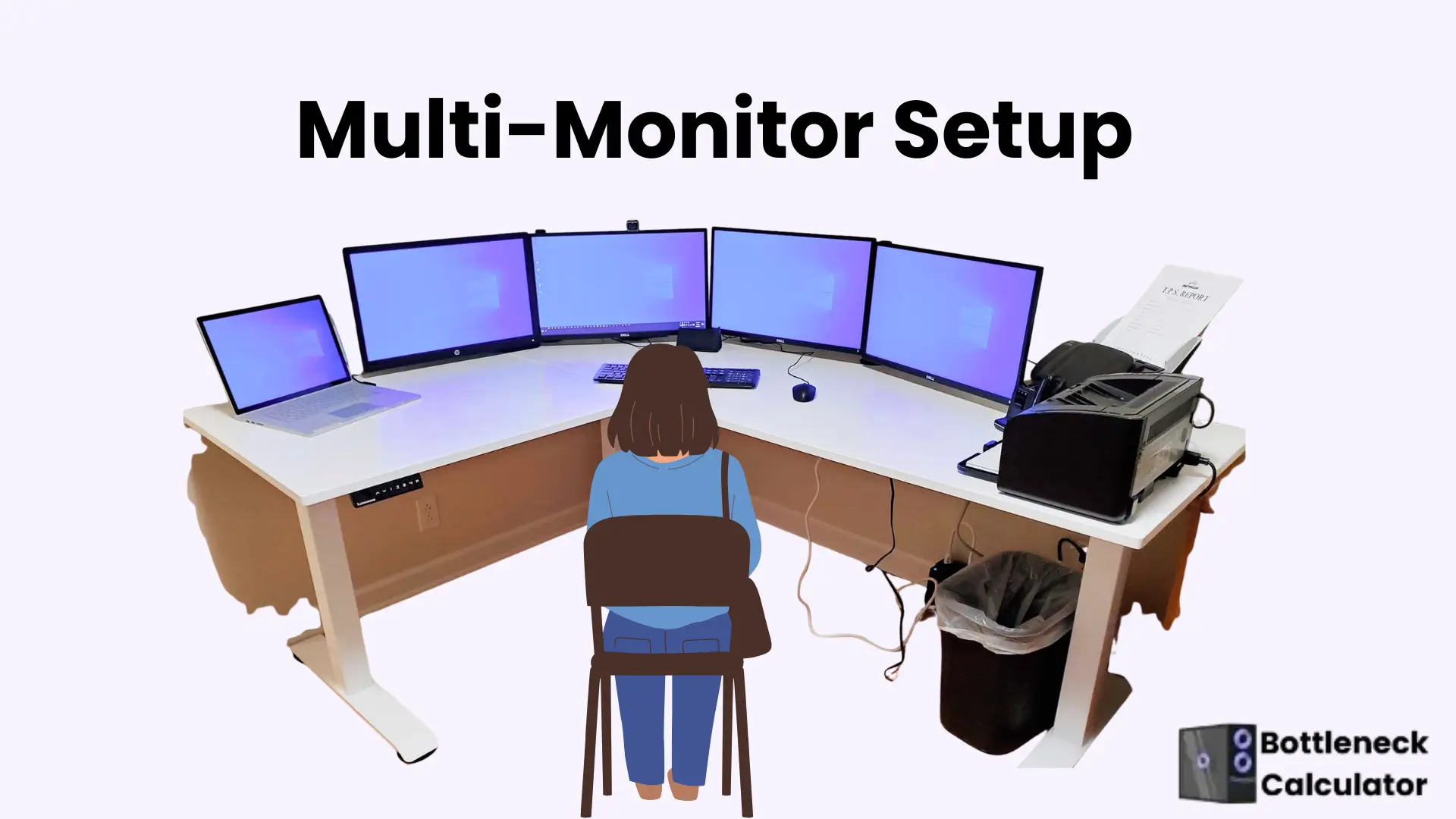
Learn how to set up a dual, triple, quad, or multi-monitor setup to improve productivity, boost work speed, and make your screen resolution bottleneck-free without switching between monitors.
Introduction
In this digital era, Many gamers and professionals want to join the multi-monitor setup to enhance productivity and multitasking capabilities. For a couple of days, I faced a cluster of problems in my multi-screen setup, such as visibility of multiple displays, flickering, unstable connection, and resolution. These problems also slow down my performance and create bottlenecks in my PC system.
Based on my experiences, I decided to share the common mistakes users often make with multi-monitor displays. I will also provide authentic ways to troubleshoot these problems forever. Whether you are a gamer, a professional, or a content creator, this guide will prove useful when adjusting dual, triple, and multi-monitor setups in your gaming career.
What Is a Multi-Monitor Setup
Let’s understand the concept of Multi-monitor configuration:
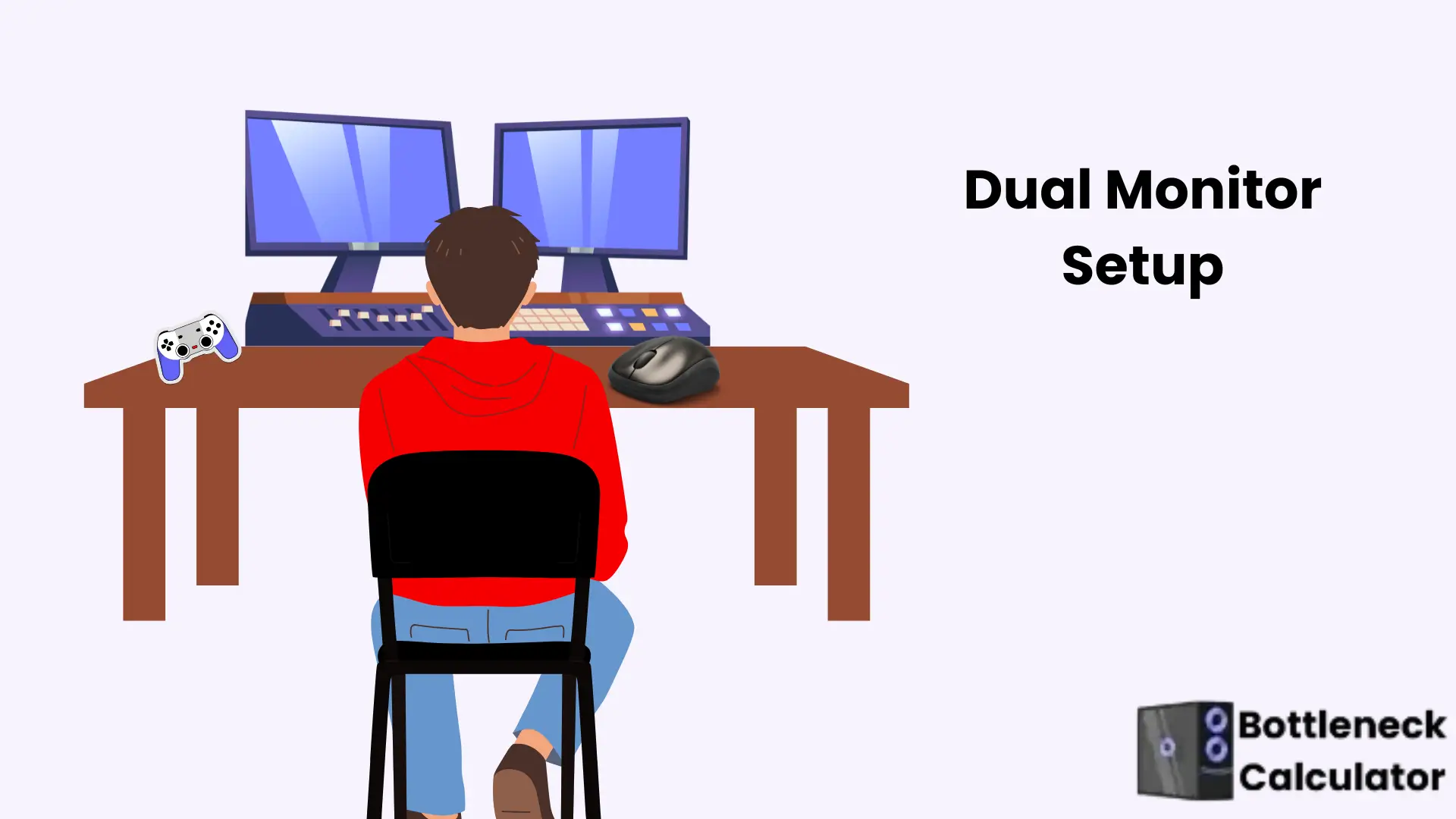
Desktop With Dual Monitor Setup
Commonly used Setup: Where 2 monitors are connected to the desktop to expand the screen and perform various tasks to upgrade productivity.
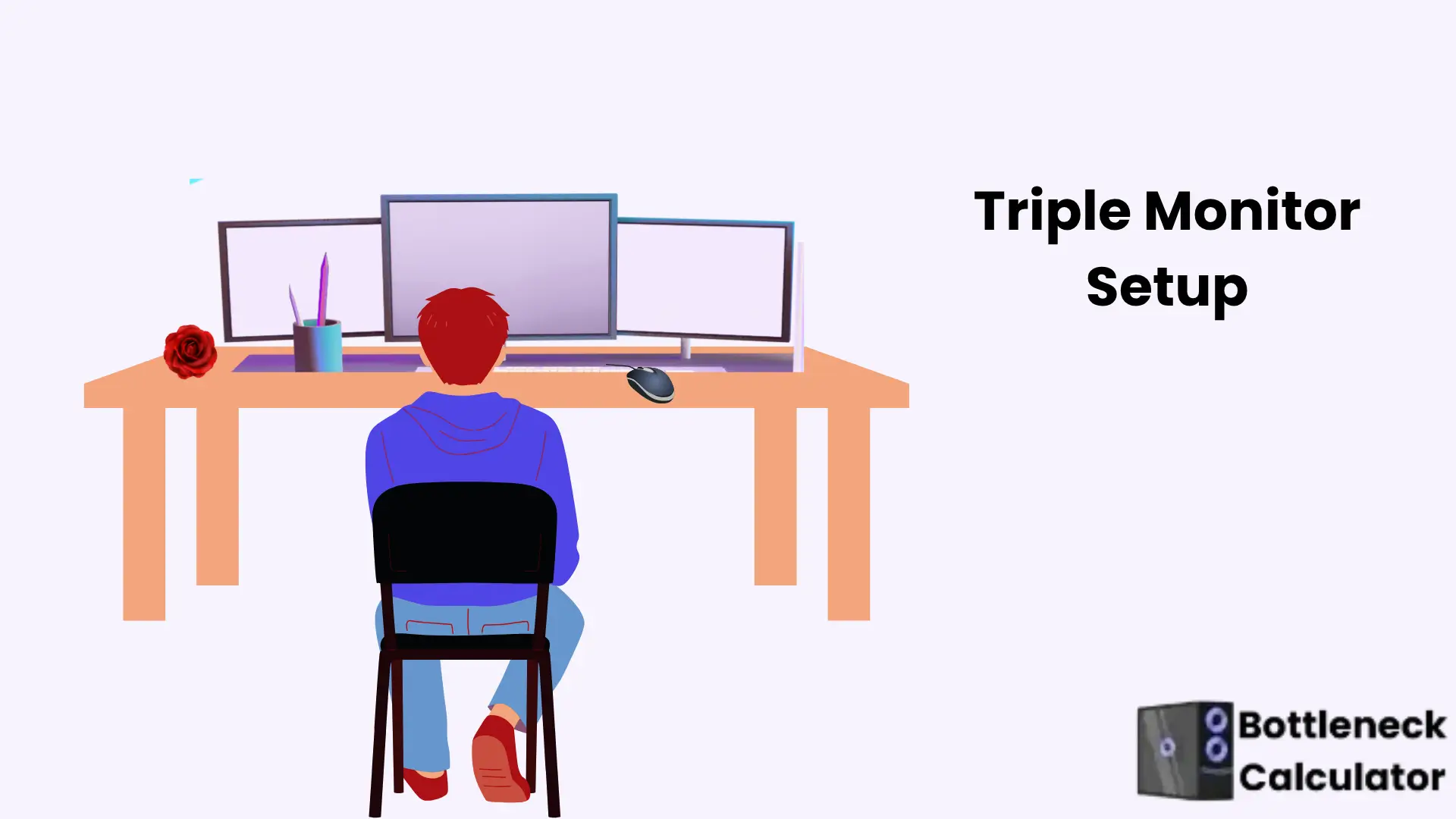
Triple or 3 Monitor PC Setup
This setup is often used by gamers and professionals, who connect three monitors to a PC for the highest performance in gaming and other tasks.
Quad or 4 Monitor And More
The 4-monitor setup is a common method and is mostly used in specialized trading.
Benefits Of a Multi-Monitor PC Setup
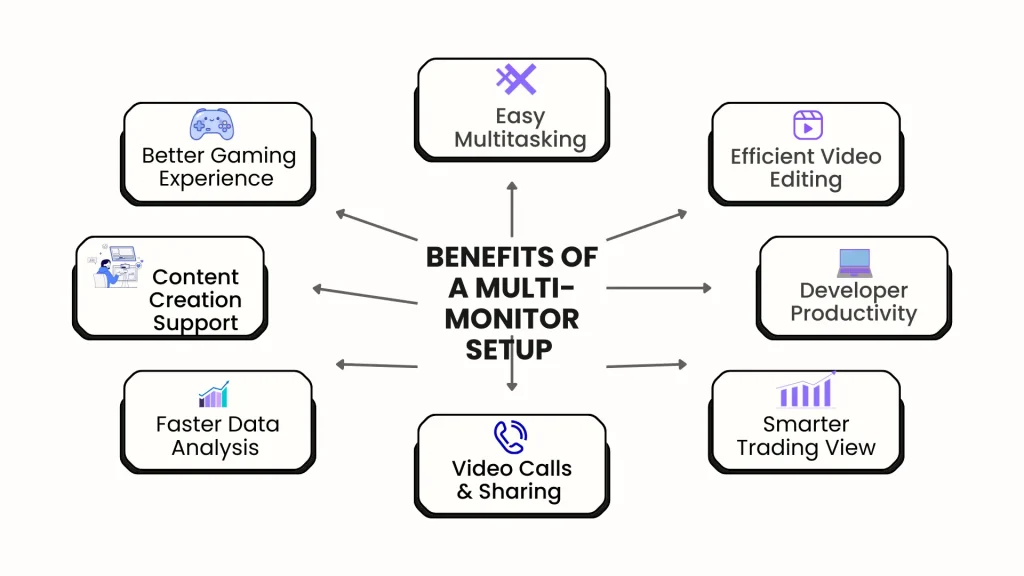
The days are gone when people used just one screen; now, life is digital. Everyone wants to do more work in less time by using a dual, triple, or multi-monitor PC configuration. No doubt it has its importance. Unbelievable benefits of multi-monitor compatibility are described below:
Multitasking Facility
It helps to do the 3 different tasks at the same time on the same screen without switching from 1 screen to another. It makes your multitasking easy.
Upgrade Gaming Performance
Playing on 3 screens at the same time increases your gaming experience, enjoyment, and performance because everything is in front of you.
Facility For Content Creators
A 3-monitor setup is helpful for video editing and content creation. You can watch the video, tool, and timeline at the same time.
Excel Sheet Analysis
Different Excel sheets can be seen and analyzed. It makes comparison easy for you.
Video Call And Document sharing.
Enjoying the video call, and document or note sharing can be done in one go.
Improve Trading Experience
A trader can watch 3 different graphs and analyze them side by side.
Software Development
In coding learning, developers can write code, output analysis, and documentation easily.
Video Editing
Editing images, videos, and previews is possible on the same display.
Note: If you are using a laptop, use the screen extender to enjoy the multi-monitor display
Requirements For Multi-Monitor Calibration
To discover the multi-monitor productivity and settings, follow our guide:
1- Graphics Card For Multi-Monitor Configuration
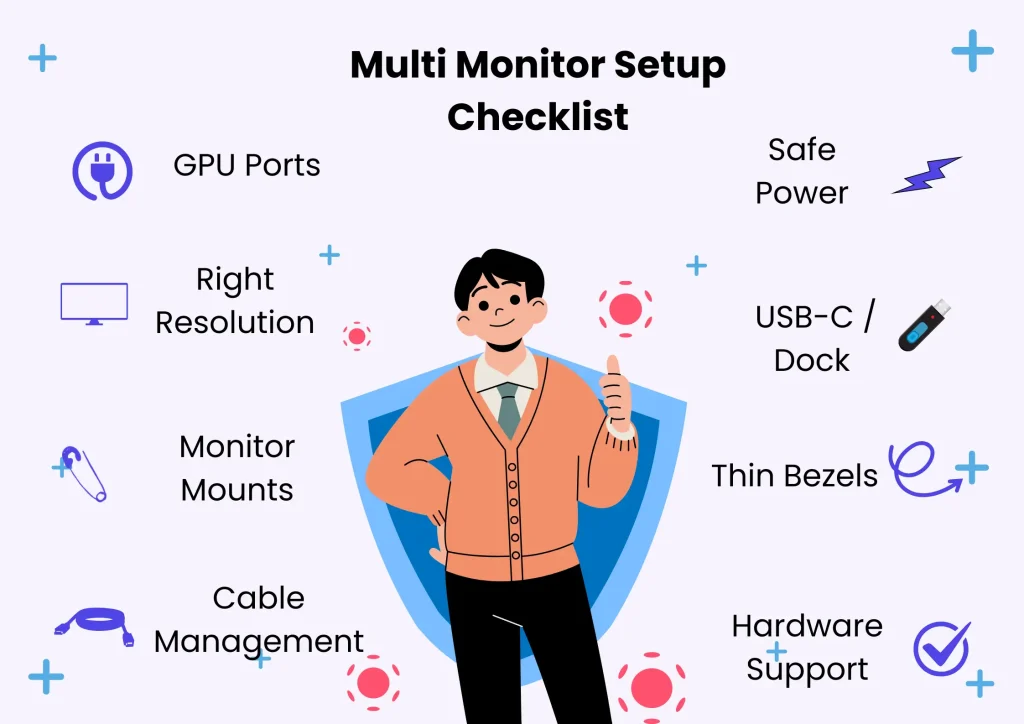
Use HDMI, DisplayPort, and VGA/DVI ports because they support three monitors. In DisplayPort, an output monitor can be connected through daisy chaining. You can easily connect the first monitor to the second one without adding an extra GPU port. A powerful GPU is needed for high resolution.
2-Best Monitor For Multi-Display Setup
3-Extra Device
The latest USB-C monitor, integrated with a USB hub, assists you in connecting various accessories, and even charging a laptop is possible with this Device.
4-Hardware Ability
Check the GPU’s power to support the multi-display. The latest graphics cards and ports support four or multiple monitors. The power supply and memory should be sufficient.
Step-By-Step Guide to Adjustment 2, 3, 4, or More Monitors for Productivity
Here is a step-by-step guide for the setup of three monitors:
How to Switch Monitors 1 And 2 In Window
Follow these steps:
How to Optimise Multi-Monitor Arrangement Bottleneck-Free
Note: If you are using two PC, then a monitor with a KVM switch can allow you to control both monitors with one mouse and keyboard.
Tips For Gamers Adjusting to a Multi-Monitor
Gamer should follow our advice for the proper adjustment of a multi-monitor:
Shortcut Key To Manage Multi-Monitor Setup
These shortcuts help you with a multi-monitor setup:
| Keyboard Shortcut | For Use |
|---|---|
| win+right | The working screen moves to the right side. |
| Win+left | The working screen turned to the left side. |
| Win up | The Screen turns to maximum. |
| Win down | Screen turns to a minimum. |
| Shift+win+left/right | Active screen shift to the next monitor. |
| Win home | Maximise all except your active window. |
Laptop’s Requirements to Connect Multiple (2, 3, 4) Monitors
Let’s explore the laptop requirements to connect to the multi-monitor:
How to Connect 2, 3, or 4 Monitors to a Laptop?
You can attach 2,3, or 4 screens to a laptop for multitasking and improve productivity.
macOS Monitor Settings
Follow these steps:
Identifying Multi-monitor Bottleneck
A bottleneck happens when one component of your PC is unable to keep up with the others and slows down the entire system. Attaching the extra monitor to the PC can cause a performance issue.
Test the Bottleneck During Working
Use the browser, YouTube, and TikTok on the various screens. If your screen starts rendering and stuttering, it means the multi-monitor setting is creating a bottleneck.
Test the Bottleneck While Gaming
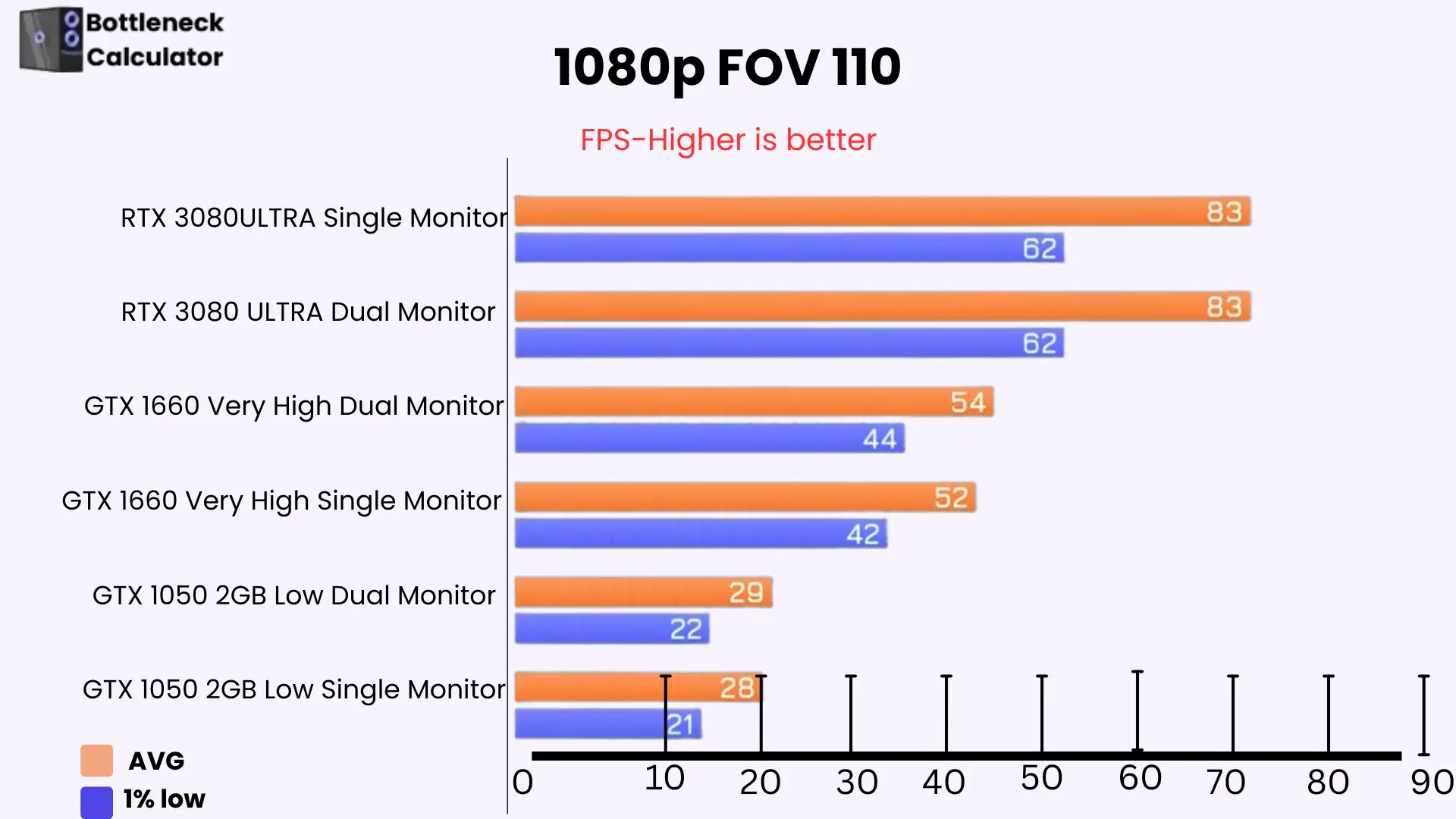
While using a multi-monitor system for playing a game at a time, if your frame rate drops and breaks the visual screen, it shows that the multiple monitor setup is creating the problem.
Tool to Check CPU and GPU Bottleneck
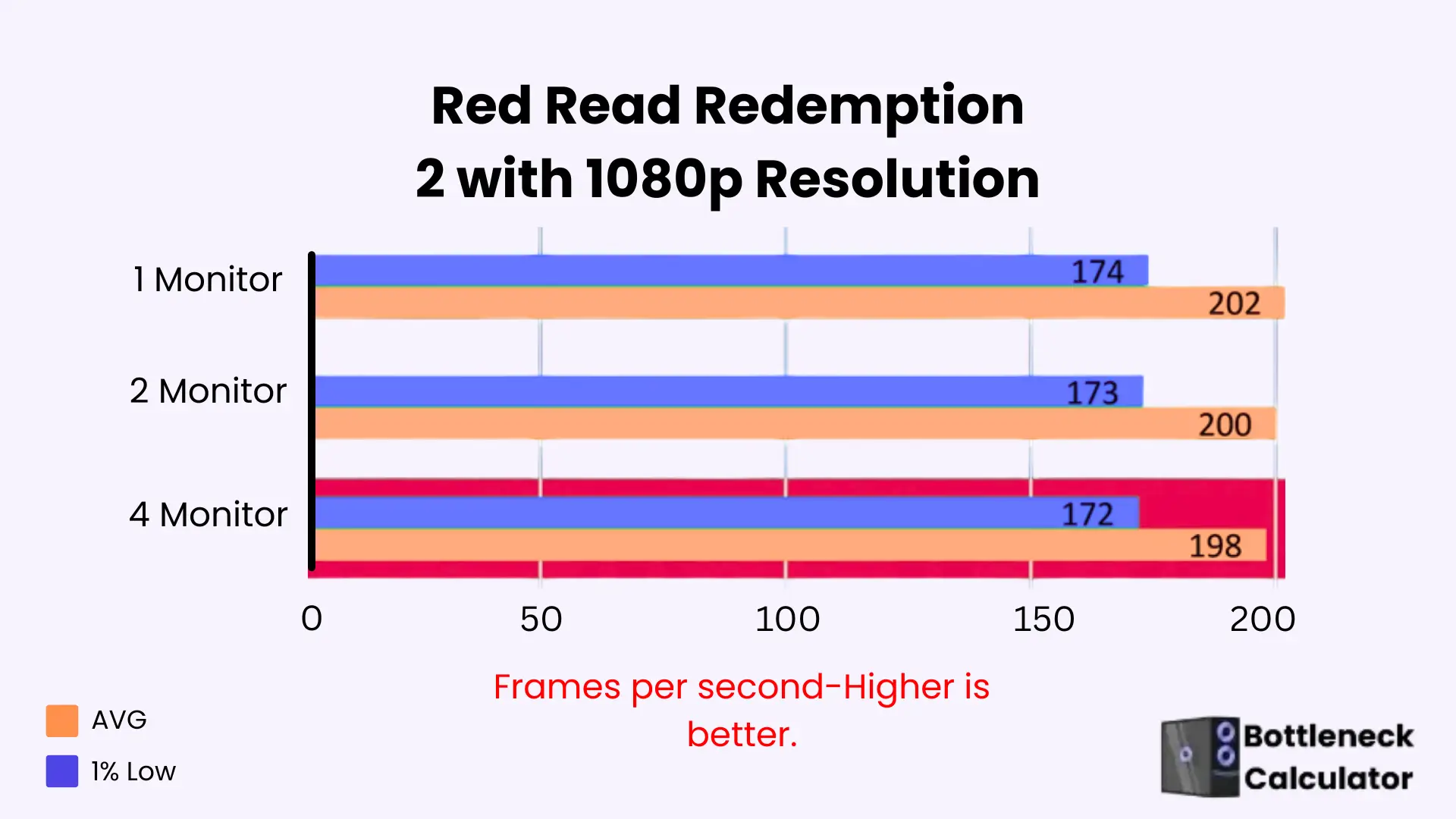
Use our bottleneck calculator to check the CPU and GPU’s ability to monitor game performance. It helps you check the frame rate and the imbalance between resolution and memory fault.
Impact of Multi-Monitor Setup
Let’s discuss the impact of multiple monitors:
Effect of Multi-Monitor Configuration on GPU
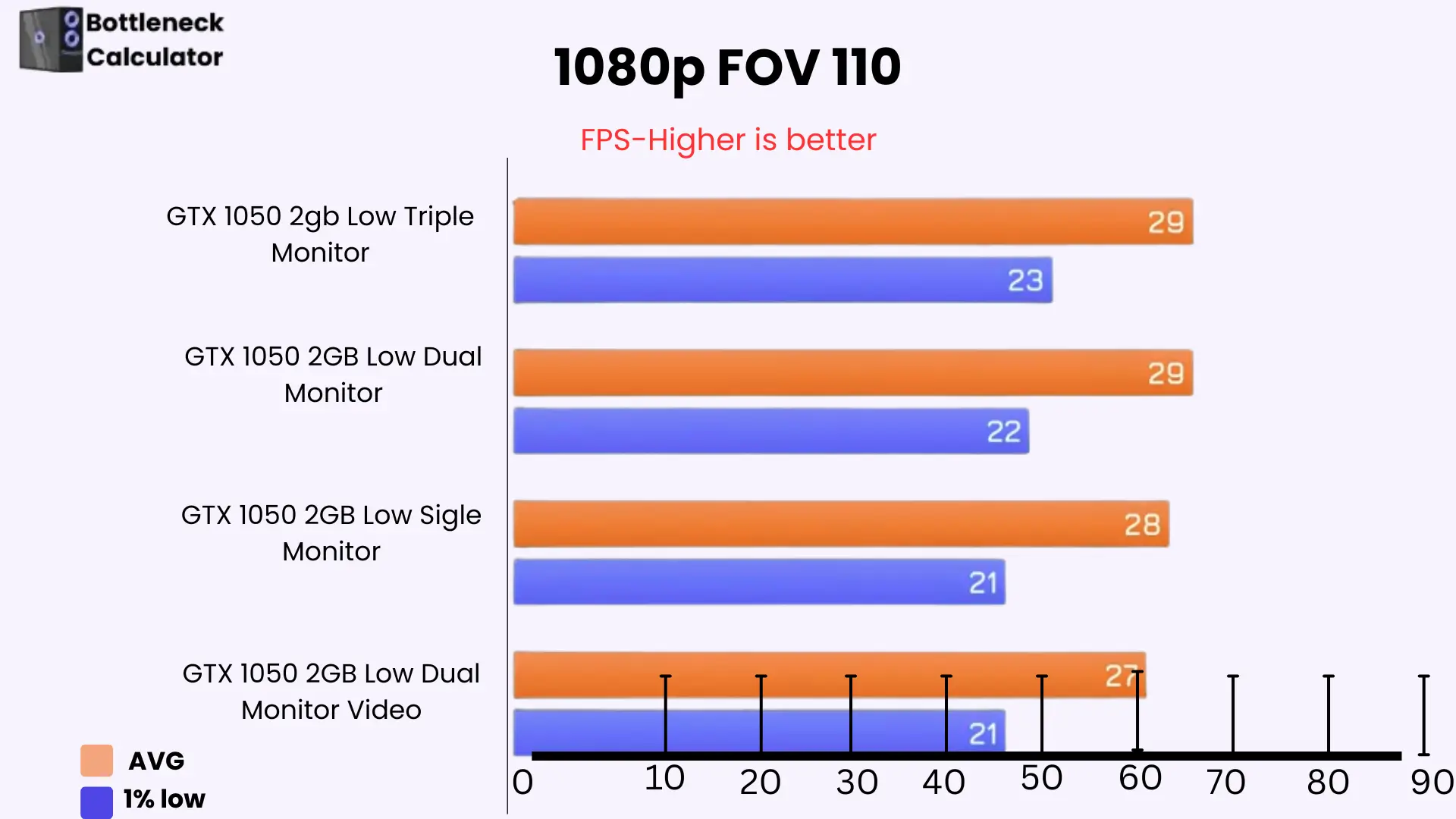
When you connect two or more monitors to your PC, it increases the GPU’s workload because it has to render the image for each screen. If different monitors have different frame rates, the GPU can hardly keep up with them.
Some applications use hardware acceleration to speed up. If the GPU is unable to bear the extra load, it creates a bottleneck in the computer system.
Effect of Multi-Monitor on Memory
Connect the multi-monitor to the PC and put the extra load on the memory. Every screen has different windows, icons, and backgrounds, all of which are managed by RAM. If you perform the various tasks on each screen, then the system must remember all their positions and states. It utilizes more memory.
Effect of Multi-Monitor On CPU
GPU works more than the CPU and memory. The CPU manages the window. When you adjust the multi-monitor to the PC, it increases the CPU load. If each monitor runs a different app, then the CPU has to work harder to keep up with the system, and it builds a bottleneck.
If you are confused about choosing the right processor for a game, then visit our article on the best CPUs for gaming.
Multiple-Display Gaming Setup and Bottleneck
When you set up a multi-monitor for gaming, it creates a load on PC components. If your CPU, GPU, and RAM are not powerful enough for heavy and demanding games, it can slow down your system. Some problems are described below:
All these problems can be created when every monitor has a separate refresh rate. If you are playing a game on one monitor, the second screen runs a separate app, such as a browser and music. It becomes the cause of bottlenecks.
Multi-Monitor Configuration and Productivity Software Challenges
Not only games but also software such as browsers, PowerPoint, and video players can create problems in a multi-monitor alignment.
If you are viewing a video on one monitor and doing something else on a second screen, then sometimes the primary screen starts to stutter and slow down your system.
If hardware acceleration is on, it increases the load on the GPU and slows down overall computer performance.
FAQ’s
Conclusion
When you connect 2,3,4, or a multi-monitor setup to a PC, it helps you multitask and increases your gaming productivity. But one thing you should keep in mind is to connect the multi-monitor to the PC, put the overload on the CPU, GPU, and memory, and cause of a bottleneck.
With proper settings and hardware requirements, these problems can be reduced. In this article, I provide a detailed guide and my experience with a multi-monitor setup. I hope this article will help to avoid multi-screen problems and make your gaming bottleneck-free.